
WordPress Forms Guide
The Complete Guide to Building Smart WordPress Forms
Learn how to create modern WordPress forms with AI, responsive layouts, conditional logic, calculators, conversational flows, notifications, webhooks, and built-in analytics.
Beginner to Intermediate · WPEasyForms
What Makes a Good WordPress Form?
A WordPress form should do more than collect a name, email address, and message. For many businesses, a form is the beginning of a sales conversation, a quote request, an appointment, a customer onboarding process, or an important internal workflow.
That means the form needs to be easy to complete, work well on phones, respond intelligently to visitor choices, and give the business useful information after the form is submitted.
Modern form builders can also go much further. You can build calculators, multi-step experiences, conditional forms, repeatable line items, conversational forms, and integrations without writing custom code.
How to Create a WordPress Form
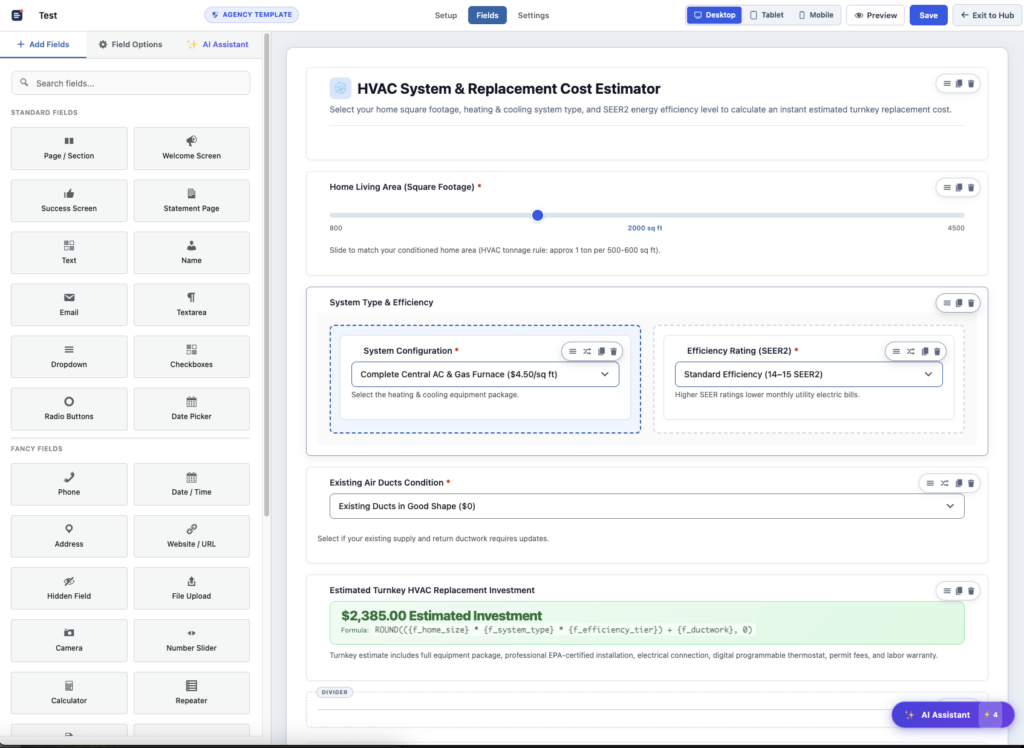
WPEasyForms is designed to let you build forms visually inside WordPress. After installing and activating the plugin, open the Easy Forms menu and create a new form.
- Open your WordPress admin dashboard.
- Go to Easy Forms → Add New.
- Choose whether to start from scratch or use the AI assistant.
- Add and configure your fields.
- Arrange the fields using the visual builder.
- Configure logic, calculations, notifications, and other settings.
- Save the form.
- Publish it on your WordPress website.
The result is a visual form-building workflow where you can see how the form is being constructed instead of relying on a collection of disconnected settings pages.
Build Your WordPress Form With AI
One of the fastest ways to create a form in WPEasyForms is to describe what you want in plain English.
Instead of manually adding every field, you can give the AI Form Architect a description of the form you want to build.
Create a home renovation estimate request with project type dropdown, budget slider from $1,000 to $50,000, square footage input, address with autocomplete, and an appointment date picker.
The AI can generate the initial form structure directly on the canvas. You can then continue editing the form normally.
You can also use the AI assistant after you have already started building. For example, you can ask it to:
- Put Name, Email, and Phone into a 2-column row.
- Add a customer satisfaction Likert scale.
- Make the phone field required.
- Add a privacy policy consent checkbox.
- Add a hero banner and trust badges.
This makes AI useful not only for creating a form from scratch, but also for refining an existing form.
Choose From 34+ WordPress Form Field Types
A professional form often needs more than basic text fields. WPEasyForms includes more than 34 specialized field types designed for different types of forms.
Standard Inputs
Name, Email, Phone, Text, Textarea, Dropdowns, and other standard fields.
Smart Pickers
Date, Date & Time, and US or international address fields with autocomplete.
Surveys & Feedback
NPS scores, Likert scale matrices, and Star or Heart ratings.
Interactive Fields
Digital signatures, file uploads, camera capture, repeaters, maps, and distance calculations.
Use Multiple Columns Instead of Endless Scrolling
Long single-column forms can make visitors feel like they have a lot of work ahead of them. Grouping related fields into logical rows can create a cleaner experience.
WPEasyForms supports 1, 2, 3, and 4-column layouts with responsive width presets. For example, you can place First Name and Last Name into a 50-50 layout or combine fields using 33-67 and 67-33 arrangements.
You can also preview the form for Desktop, Tablet, and Mobile directly inside the builder.
Make Your WordPress Form Responsive
A form that looks good on a desktop monitor may not work as well on a phone. Responsive controls let you check the layout at different screen sizes while you build.
Use the device preview controls to review your fields and layouts before publishing. This is particularly important when your form uses multiple columns, larger input controls, or more complex sections.
Add Conditional Logic to Your Forms
Conditional logic lets a form respond to what the visitor selects or enters.
For example, a form could display additional questions when someone selects a particular service. More advanced forms can also change individual choices inside a field.
Choice-Level Conditional Logic
WPEasyForms includes choice-level conditional logic for Dropdown, Radio Button, and Checkbox fields.
Instead of creating multiple duplicate dropdowns, you can apply logic directly to an individual choice.
For example, imagine a shed configuration form where an 8×10 option should not be available when the visitor selects High Gable.
- Open the Dropdown field.
- Select the specific choice.
- Enable Choice Logic.
- Set the condition.
- Hide the incompatible choice when the condition is met.
This keeps the form structure cleaner and prevents visitors from selecting incompatible combinations.
Build a WordPress Quote Calculator
Some forms need to calculate a result while the visitor is completing the form. This is useful for quote requests, pricing tools, mortgage calculators, loan estimates, delivery fees, and other interactive experiences.
WPEasyForms includes a built-in math engine. Add fields that collect numbers, add a Calculator field, and create the formula you need.
ROUND({f_budget} * 0.08 + {f_service_fee}, 2)The calculator can display results as currency, percentages, or numbers.
Supported functions include basic mathematical operations, conditional formulas such as IF, and financial functions including AUTOLOAN and MORTGAGE. Distance and mileage calculations can also be used for scenarios such as delivery pricing.
Create a Multi-Step or Conversational WordPress Form
Not every form needs to display every question at once. Conversational forms can present questions one at a time to create a more focused experience.
WPEasyForms includes a conversational mode that can use smooth scrolling or fade transitions, custom branding, progress indicators, and page breaks.
- Open the form settings.
- Enable Conversational Form Mode.
- Choose your transition style.
- Set your accent color and branding.
- Choose a progress bar style.
- Add page breaks between questions or sections.
Visitors can then move through the form one step at a time instead of facing one large form.
Use Repeater Fields for Dynamic Information
Some forms need visitors to enter the same type of information multiple times. A repeater field can handle situations such as invoice items, order items, multiple guests, or other repeating information.
Instead of creating a fixed number of duplicate fields, the visitor can work with a repeatable structure.
Improve Form Design With HTML Blocks
A form doesn’t have to be a plain collection of labels and inputs. HTML blocks can be used to add supporting content and visual sections throughout the form.
For example, you can add a hero section near the top of a quote form explaining what the visitor will receive.
You can also add trust and security messaging near the submit button or social proof around important conversion points.
Set Up Email Notifications
Once someone submits a form, the information needs to reach the right people. WPEasyForms provides notification settings for sending customized emails to your team and confirmation messages to customers.
Smart tags can be used to insert dynamic information into notification messages, including:
{all_fields}{site_name}{date}- Other available form values and calculation results
Connect WordPress Forms With Webhooks
Forms can also send submitted information to other systems. WPEasyForms supports webhooks for integrations with automation platforms such as Zapier and Make.
This can be used to move form submissions into a CRM, spreadsheet, Slack workflow, or another connected system.
Publish Your WordPress Form
After your form is finished, WPEasyForms gives you multiple ways to place it on your website.
- Gutenberg: Add the WPEasyForms block and select your form.
- Page builders: Use a shortcode widget.
- Shortcode: Use the form shortcode wherever shortcode output is supported.
[oef_form id="123"]Track Form Submissions and Conversions
Building a form is only part of the job. You also need to understand whether visitors are actually completing it.
WPEasyForms includes built-in analytics that can show submission counts, conversion rates, drop-off funnels, and click heatmaps inside the WordPress dashboard.
This gives you a way to look beyond the number of submissions and investigate how visitors interact with the form.
What Can You Build With WPEasyForms?
Lead Generation
Build service inquiry, consultation, contact, and lead qualification forms.
Quote Calculators
Collect project information and calculate pricing directly inside the form.
Customer Onboarding
Create multi-step experiences that collect detailed information from customers.
Surveys & Feedback
Use NPS, Likert scales, ratings, and other interactive fields.
Appointment Requests
Collect contact information, dates, times, addresses, and other appointment details.
Interactive Forms
Combine conditional logic, calculations, conversational steps, and responsive layouts.
Frequently Asked Questions
Do I need coding skills to build a WordPress form?
No. WPEasyForms is designed as a visual, no-code form builder. You can build layouts, add fields, configure logic, create calculators, and use the AI assistant without writing custom form code.
Can I build a WordPress form with AI?
Yes. WPEasyForms includes an AI Form Architect that can generate a form from a natural-language description. The AI assistant can also modify an existing form on the canvas.
Can I create a WordPress calculator?
Yes. WPEasyForms includes a built-in calculation engine that can perform mathematical, conditional, financial, and distance-related calculations.
Can I create a conversational WordPress form?
Yes. Conversational Form Mode can display questions as a step-by-step experience with transitions, branding, progress indicators, and page breaks.
Can I connect my WordPress form to other applications?
Yes. WPEasyForms supports webhooks that can send form submissions to connected automation and integration services such as Zapier and Make.
Build Smarter WordPress Forms
A modern WordPress form can be much more than a basic contact form. It can calculate prices, respond to visitor choices, guide people through a conversational experience, collect complex information, connect to other systems, and show you how visitors interact with it.
WPEasyForms brings those capabilities together inside WordPress so you can build and manage the form from one visual environment.
Leave a Reply